Essential Design Fixes for Print on Demand Success: Bleed, Resolution and Background Tips
.jpg)
Before hitting that upload button on your print on demand project some key design fixes demand your attention. Ignoring things like bleed, resolution and background settings can tank your product’s quality and leave customers disappointed.
Bleed ensures your design covers the entire area with no unwanted white borders. Resolution affects how sharp and crisp your images look when printed.
Backgrounds can make or break the final look especially if they're transparent or the wrong color. Fixing these now saves headaches later and keeps your offerings looking professional.
Ready to get these basics right and avoid costly mistakes? Keep reading for clear tips that will sharpen your print on demand game.
If you’re curious about how to get started or want to sharpen your sales tactics check out the How to Start Print on Demand Business guide or learn some Print on Demand Social Media Strategies to boost your reach.
Before Starting this Blog Watch this Video
8 Tips for a Perfect Design Print File with Printful
Understanding Bleed in Print on Demand Designs
Before uploading your print on demand design a critical concept to grasp is bleed. It ensures your image or artwork extends just a bit beyond the trim area.
This little extra space is what keeps your prints looking sharp and polished avoiding any ugly white edges after the final cut.
Getting this right might seem technical but once you understand bleed, you’ll see it’s one of the easiest fixes to keep your designs professional and flawless.
What Is Bleed and Its Role in POD
Bleed is the area that stretches beyond the final cut line of your print. Think of it as a buffer zone that accounts for slight shifts during printing and trimming.
In print on demand this is non-negotiable. Without bleed small inconsistencies in cutting can leave white borders or missing artwork edges exactly what you don’t want when you’re selling custom products.
It’s like painting a fence: you want the paint to overlap the edges slightly to ensure no wood peeks through after trimming. Bleed guarantees that your design reaches all edges of the product creating a clean final look.
Common Bleed Sizes and Standards
Most print services require a bleed of about 0.125 inches (3mm) on each side.
This small margin covers typical variations in printing and cutting but check your POD provider’s specifications because some might call for more or less bleed. Standard bleed sizes include:
- 0.125 inches (3mm): Typical for posters, t-shirts, phone cases.
- 0.25 inches (6mm): Occasionally requested for larger prints or fine art prints.
- Bleed sizes can vary so always check your platform’s requirements.
The most common mistake is either skipping bleed altogether or not extending backgrounds and graphics fully into this zone. That leads to designs being trimmed too close or showing unwanted white edges.
For more about common printable sizes and bleed needs this guide explains how to properly design a full bleed print How to Properly Design for Full Bleed Printing.
How to Set Bleed in Popular Design Tools
Different design tools have straightforward ways to add bleed guides. Here’s a quick look at how to set it up:
- Adobe InDesign: Set bleed under File > Document Setup, then enter 0.125 inches or your print provider’s value. Use the bleed preview mode under View > Screen Mode > Bleed to see the layout.
- Canva: Enable bleed view by selecting File > Show print bleed (the dashed border shows your safe boundaries). Make sure your design extends past these lines.
- Photoshop: When creating a new canvas, add bleed by increasing the canvas size. For example increase width and height by 0.25 inches total (0.125 inches each side) and extend your design accordingly.
Don’t forget to check the guidelines in your design tool to preview crop marks and bleed areas before exporting your file. Adobe’s guide on How to set a print bleed in InDesign explains this in detail.
Consequences of Ignoring Bleed in POD Designs
Skipping bleed? Expect problems that can ruin your print quality and customer experience:
- White Borders: The most obvious issue; tiny margins left uncovered after cutting.
- Cutting Too Close: Important details or text can get chopped off because the printer trimmed right at the edge.
- Unprofessional Look: Your product won’t look polished. It risks looking rushed or poorly made.
- Rejected Prints: Some POD platforms may reject files outright if bleed isn’t set correctly, leading to delays.
Imagine carefully placing a frame around a photo but cutting exactly to the photo’s edge you’d miss some parts after trimming. That’s exactly why bleed is your safety net.
By setting bleed correctly you avoid these avoidable errors and deliver quality prints every time. This simple fix protects your design integrity and keeps your customers happy.

Photo by HONG SON
For a practical introduction to starting your print on demand business and ensuring your designs are ready to impress consider reading the detailed How to Start Print on Demand Business guide.
It covers design tips and more to build a solid foundation for success.
Optimizing Resolution for High-Quality Print Results
When it comes to print on demand resolution is one of those silent heroes that makes all the difference.
Imagine snapping a photo with your phone and blowing it up to poster size if the image isn't sharp enough you'll see pixelation and fuzziness that kills the quality.
The same goes for your print files: if the resolution is off your design will look blurry or grainy on the product. Getting the resolution right before uploading saves you time, money and frustration.
Recommended DPI for Print on Demand Products
DPI or dots per inch measures how many ink dots fit into an inch of your printed image. The higher the DPI the sharper and crisper your print will appear.
For most print on demand products the sweet spot lies between 150 and 300 DPI:
- 150 DPI: Acceptable for larger prints viewed from a distance (like posters or wall art).
- 300 DPI: The gold standard for apparel, accessories and small prints needing crisp details.
Anything below 150 DPI risks a pixelated print; above 300 DPI doesn't usually add visible quality but creates unnecessarily large files.
It's like packing just the right amount of sugar in your recipe—too little, and it tastes bland; too much and you end up wasting ingredients.
If you’re unsure, check your print provider’s DPI recommendations. Most offer detailed guidelines to help you avoid resolution pitfalls.
For instance Printful recommends uploading at 300 DPI for best results but accepts 150 DPI for some items to balance quality and file size.
How to Check and Adjust Resolution in Design Files
Before submitting your design verifying the resolution is a must-do step. Here’s how you can quickly check and fix your files:
- In Photoshop: Go to Image > Image Size. You’ll see the resolution box; set it to 300 DPI without resampling to keep quality intact.
- In Adobe InDesign: Select your placed images and check the Links Panel for effective PPI (pixels per inch). Make sure it’s at or above 300 PPI.
- In Canva: Canva doesn’t display DPI directly. Export your design at the highest possible quality (PDF Print or PNG with 300 PPI recommended).
- In Illustrator: Vector art scales infinitely so resolution concerns mainly apply to embedded raster images within your file.
Adjusting resolution sometimes means reworking the original image or redesigning in higher quality.
Don’t stretch low-res images to fit a larger canvas they lose sharpness fast, resulting in disappointing prints.
Common Resolution Issues and How to Fix Them
Even the best designers hit bumps with resolution. Here are a few typical problems and their quick fixes:
- Pixelation: Caused by low DPI or enlarging small images. Fix it by sourcing or creating higher-res graphics.
- Blurriness: Often due to compression or saving files in formats that sacrifice quality. Save as PNG or TIFF for lossless results.
- File Size Problems: Ultra-high DPI files get huge and slow to upload. Balance quality and size by sticking to 300 DPI and compress your files if needed.
- Misaligned DPI in Multi-image Designs: All elements should meet DPI minimums or the lowest DPI component will bring down overall quality.
When in doubt zoom in on your design at 100% on screen. If you can’t clearly see edges and details here it won’t be any better on print.
For more about troubleshooting common print issues resources like Printful's guide on DPI offer clear explanations and tips.
Tools and Software for Ensuring Optimal Resolution
You don’t have to be a designer to get your print on demand files spot-on. Plenty of tools help you check and optimize resolution before uploading:
- Adobe Photoshop: Industry standard for image editing and resolution tweaking.
- Adobe InDesign: Great for layouts and checking placed image resolution.
- Canva: User-friendly with export settings geared towards print quality.
- Affinity Photo and Designer: Affordable alternatives to Adobe’s suite, with robust resolution control.
- Online DPI calculators: Quickly check required pixel dimensions for specific print sizes and DPI.
Many POD platforms integrate resolution checks during upload, but knowing how to handle files yourself ensures nothing slips through.
You can also create templates in Photoshop or Canva with the right DPI and bleed set up from the start saving headaches later.
Photo by Engin Akyurt
For a step-by-step dive into preparing your print files check out this guide on preparing the perfect print file. It’s filled with practical advice tailored to print on demand sellers like you.
Ensuring your design meets the right resolution means your final product will speak quality loud and clear.
Take the time to get it right you and your customers will thank yourself for it!
Designing Effective Backgrounds for POD Products
When creating designs for print on demand products, the background you choose isn’t just filler it sets the stage for your artwork.
A well-thought-out background enhances your design's visual appeal and avoids printing issues that could spoil your final product.
From color choices to handling transparency backgrounds play a critical role in how your design comes to life on shirts, mugs or phone cases.
Let’s make sure your backgrounds work for you not against you.
Choosing the Right Background Colors for POD
Colors can make or break your product’s appeal. The right background color serves as the perfect canvas that lifts your artwork while the wrong one can dull or clash.
- Contrast is key: Pick background colors that create clear contrasting edges for your design. This makes details pop especially for text or graphics with fine lines.
- Consider product color: If the POD item has a fixed base color (like a black mug or white t-shirt), match or complement the background color to avoid harsh visual clashes.
- Color psychology matters: Colors evoke emotions and perceptions. For example blues often feel calm and trustworthy while reds grab attention and excitement. These subtle cues impact buyer appeal. Learn more about the psychology of color in print on demand.
- Use print friendly palettes: Some colors look vibrant on screen but dull in print. It’s best to design with CMYK or sRGB profiles and preview colors in these modes to avoid surprises. The Color Matching Guide for Print on Demand Products offers useful tips on this.
Using Transparent vs. Solid Backgrounds
Deciding between transparent or solid backgrounds isn’t always straightforward but it’s important for print quality and versatility.
- Transparent backgrounds allow the base product color to show through. They work well for stickers or apparel where you want the design floated on fabric without a colored box around it. However:
- Be aware that transparent PNGs print differently on various products and platforms.
- Some POD providers automatically print a white background behind transparent images which might change your intended look.
- Solid backgrounds guarantee consistency. Use solid colors to frame your design or blend with the product color. This can reduce printing errors since the printer has a defined area to cover.
- When in doubt test sample prints with your chosen background type or ask your POD provider’s support about how they handle transparency. This can prevent unexpected results.
Tips for Backgrounds to Prevent Printing Errors
A nice background is great but it has to play nice with the printing process. Here are some solid rules to keep errors at bay:
- Avoid pure white (#FFFFFF) backgrounds unless your product is white or the printer specifically supports it. White backgrounds on colored products can lead to unsightly blocks of color mismatch or ink issues.
- Use bleed correctly with backgrounds. Extend background colors or textures beyond the trim area (usually 0.125 inches on each side). This prevents thin white edges after cutting.
- Keep backgrounds simple around edges. Complex or noisy edges risk getting cut unevenly, making the design look messy.
- Choose solid, flat colors or high-resolution textures. Fuzzy, low-res patterns cause blur or pixelation. If you use gradients or textures make sure they’re smooth and high quality.
- Save files correctly. Use PNG for transparency and JPEG for solid background colors with no transparency. The print on demand tips page by Sellfy recommends maintaining at least 150 DPI and using proper color profiles.
How Background Design Affects Product Presentation and Marketing
The background isn’t just about printing it affects how your product looks in photos and sells online.
- Good backgrounds enhance visibility: When listing products on marketplaces or social media a clean appealing background avoids distractions. It helps your design be the star.
- Mood setting: Background colors influence how buyers perceive the product’s tone. A calm neutral background might be perfect for professional gear while bold colors energize youth markets.
- Brand consistency: Use backgrounds aligned with your brand palette for cohesive marketing. It builds recognition and trust.
- Supports mockup versatility: Designing with neutral or transparent backgrounds lets you easily place your design on multiple product colors or types saving time and appealing to wider audiences.
- Avoid background conflicts: Too busy or clashing backgrounds can make your product photos less clear, hurting conversions.
Picking the right background is a subtle but powerful step in your POD design process.
It avoids printing headaches and doubles as a marketing asset by helping your design shine on every product.

Photo by Codioful (formerly Gradienta)
For more detailed guidance on preparing image files that print well, check out this thorough resource on how to prepare the perfect print on demand image file.
It’s packed with practical info about backgrounds, color and resolution to help your POD projects succeed.
Also to broaden your understanding of design impact on print on demand products the Printify design guide provides clear insights on avoiding poor print quality related to backgrounds and imaging.
These tips are well worth a look before your next upload.
Additional Design Fixes and Best Practices Before Uploading
Before you upload your design to a print on demand platform there are some extra details worth double checking.
These design fixes might not grab your attention at first glance but they play a big role in how smoothly your files print and how the final product looks.
From file formats to how you organize your elements mastering these can save you a ton of headaches. Let’s break down the key points to nail before that crucial upload.
Choosing the Correct File Format for Print on Demand
Picking the right file format isn’t just about what looks good on your screen; it directly affects print quality and compatibility with POD services.
The most common formats for print on demand are:
- PNG: Great for designs with transparent backgrounds and crisp edges. PNGs support lossless compression which means no quality loss. Use this for logos, artwork with transparency or designs with sharp lines.
- JPEG: Best for photos or designs with complex gradients. It uses lossy compression which can reduce file size but might cause slight quality dips. Avoid JPEG for images needing transparency.
- PDF: Ideal when submitting layered vector designs or multi page artwork. PDF preserves vector quality which means no pixelation even if the design is scaled.
- TIFF: Some POD shops accept TIFF for its high quality and flexibility but file size can get large.
Always check your print provider’s preferred formats. Uploading the wrong format might lead to unwanted compression, color shifts, or even rejection of your file.
For a quick refresher here’s an Introduction to Print on Demand that touches on file specs.
Understanding Color Profiles: RGB vs CMYK
Color profiles can be one of the trickier parts to wrap your head around, but they’re important for achieving the look you want in print.
- RGB (Red, Green, Blue) is what screens use your monitor, phone, tablet—all display colors in RGB. It has a wider color range which is why your design might look vibrant on screen.
- CMYK (Cyan, Magenta, Yellow, Black) is the printing color model. Printers combine these four inks to reproduce your design colors.
Most print on demand platforms expect your files in CMYK or will convert RGB files behind the scenes.
This conversion sometimes changes colors especially bright or saturated ones making prints look duller than the screen version. To avoid surprises:
- Design your graphics initially in RGB for vibrancy.
- Before uploading convert your files to CMYK and preview colors carefully.
- Use software that supports soft proofing (like Adobe Photoshop) to simulate printed colors.
If you want to dive deeper the Printify design guide offers helpful insights on managing colors for POD printing.
Organizing Layers and Elements for Clean Files
A tidy design file is like a well-organized toolbox—everything in its place, easy to find, and ready to use.
This is especially important when your design involves multiple layers, text, or complex elements.
- Name your layers clearly: Instead of Layer 1 use descriptive names like Text_Blue or Background_Texture.
- Group related elements: Keep shapes, text and effects grouped logically. This makes edits and troubleshooting faster.
- Flatten layers when necessary: Some POD platforms recommend flattening your design to prevent unexpected shifts in layered files or text.
- Remove hidden or unused layers: Extra layers can bloat file size and cause confusion during printing.
- Outline fonts: Converting text to outlines ensures your fonts won’t be substituted or distorted if the printer doesn’t have the font installed.
Keeping things neat avoids technical errors like font substitutions, misplaced elements or files that crash your POD platform during upload.
While some platforms handle messy files fine why risk delays or quality drops? Organize your layers for a smooth professional finish.
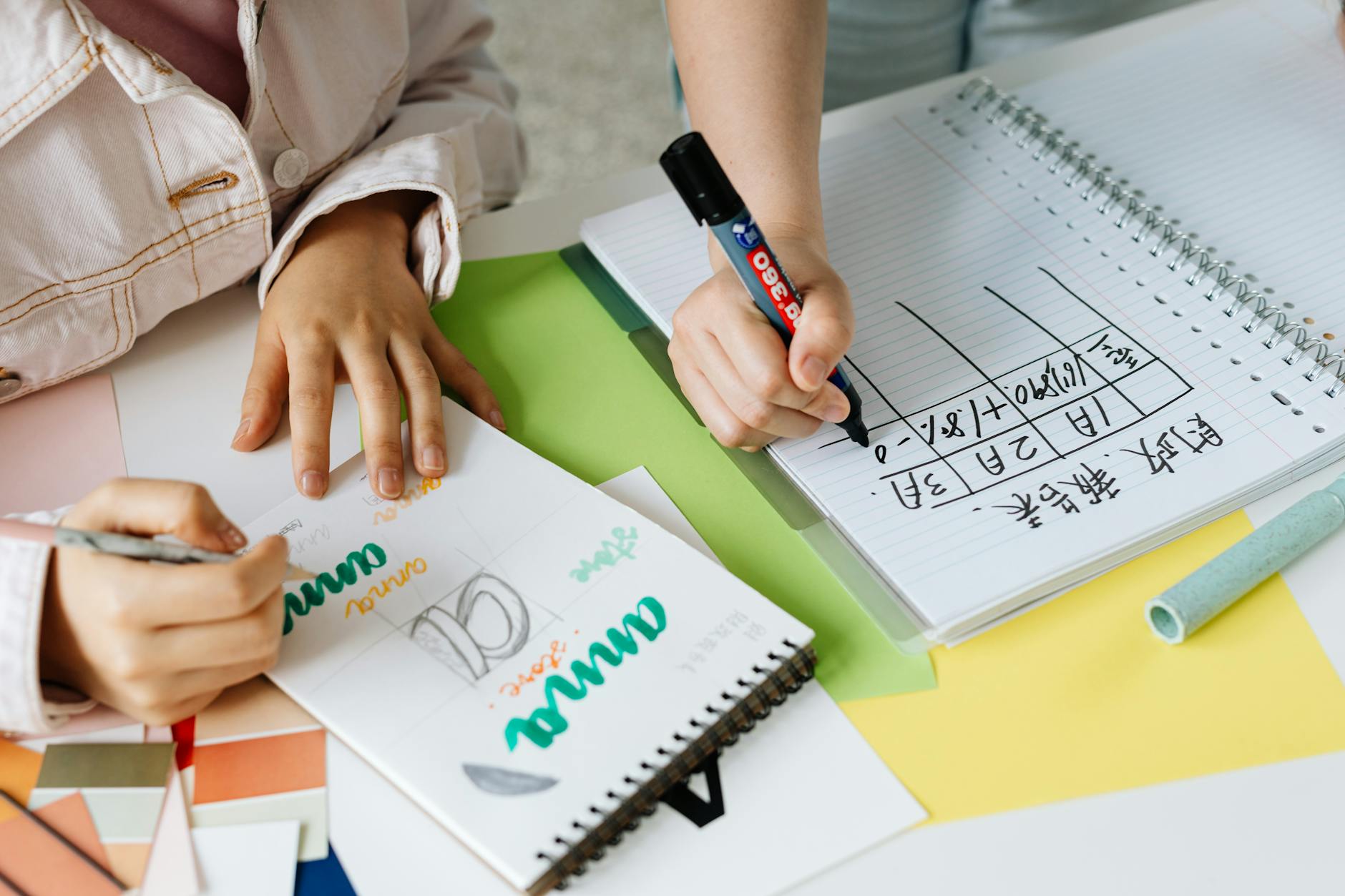
Photo by Kaboompics.com
Final Checklist: Preparing Your POD Design for Upload
Before you hit upload take a few minutes to run through this final checklist.
It’s like a pre-flight inspection for your design:
- File Format: Confirm your file is saved as PNG, JPEG, PDF or TIFF according to your POD provider’s recommendations.
- Resolution: Make sure your design is at least 150–300 DPI
Conclusion
Getting your bleed, resolution and backgrounds spot-on before uploading is non-negotiable for print on demand success. These fixes keep your designs crisp, colors accurate and edges clean no ugly surprises after printing.
Taking the time to double check these details elevates your product quality and means happier customers who come back for more.
Apply these tips to avoid common pitfalls and save time on revisions or returns. If you want to troubleshoot common issues or go deeper into managing your print on demand business exploring resources like Print on Demand Order Problems can make a big difference.
Remember small adjustments beforehand lead to big wins in your POD journey. Keep refining your designs and build confidence in every upload!












.jpg&description=Print On Demand Design Fixes: Bleed & Resolution Tips)
0 Comments